





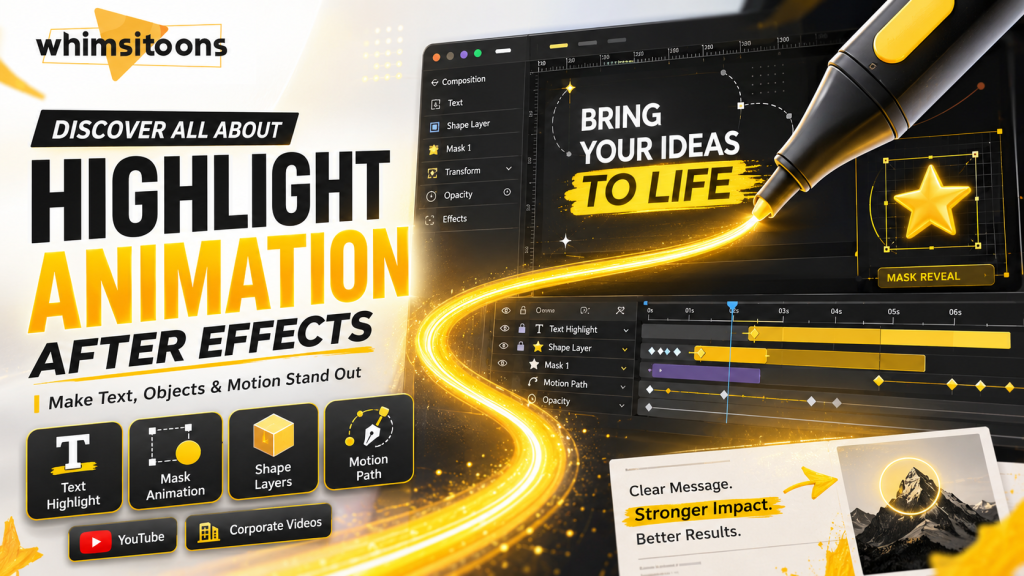
Discover All About Highlight Animation After Effects
Imagine creating videos that don’t just catch the eye but keep viewers hooked. The challenge? Without the right technique, your highlights can fade as quickly as they appear. Research shows that animated transitions hold attention better than static visuals.
One study of 89 data videos found that motion based storytelling increased engagement and retention.
As Chuck Jones once said,
“Animation means to invoke life, not to imitate it.”
If your intros feel flat or your edits fail to grab attention, you’re not alone. In this guide, we’ll explore Highlight Animation After Effects, how to use keyframes, masks, and motion paths to design highlight effects that command focus and elevate your visuals. Whether you’re editing YouTube content or client projects, you’ll learn to turn simple motion into unforgettable storytelling.
Key Takeaways:
|
Understanding Highlight Animation in After Effects
Before we jump into the technicalities, let’s understand what we mean by Highlight Animation After Effects. It’s a technique used to emphasize certain elements in a video, like text, objects, or even areas of the screen. Highlight animations can take many creative forms, from a highlighter stroke effect that mimics a real marker to a sleek underline highlight animation, or even a smooth highlight line animation that travels beneath your text for added emphasis.
This technique is super handy for tutorials, promotional videos, or any content where you want to draw the viewer’s attention.
Why Use Highlight Animations?
- Enhance viewer engagement: Keeps your audience focused.
- Professional touch: Adds a polished look to your videos.
- Clarity and emphasis: Makes important information stand out.
Getting Started with After Effects
Basic Setup
If you’re new to After Effects, start by familiarizing yourself with the interface, as this is a foundational skill used across professional motion graphics animation services. Play around with the basic tools, and don’t hesitate to use online resources or tutorials.
Importing Your Footage
- Start a new project.
- Import the video you want to edit.
Creating a Highlight Animation for Text
Step by Step Guide
- Select Your Text: Choose the text you want to highlight.
- Animation Tool: Use the animation tool to create an outline around the text.
- Keyframes: Add keyframes to animate the highlight effect.
Pro Tip:
| Experiment with different colors and opacity levels for the highlight to suit your video’s style and tone. For creative flair, you can try a brush reveal animation or a marker reveal effect to simulate hand drawn strokes that follow your text. When working with typography in motion graphics, these subtle touches can make your titles or captions feel more dynamic and human. |
Highlighting Areas in Your Video
This is where the After Effects Highlight Area technique comes into play. It’s perfect for tutorials or product demos.
How to Do It
- Identify the Area: Decide which part of your video needs highlighting.
- Masking Technique: Use the pen tool to create a mask around the area.
- Animate the Mask: Adjust the mask path using keyframes to follow the area you’re highlighting.
Pay attention to your motion path and ensure it aligns with the object’s movement across frames. Adjust your composition settings early to keep your project organized and scalable for different platforms.
Creative Twist:
Add a feather effect to the mask edges for a softer, more professional look.
YouTube Highlight Animation After Effects
Creating animations for YouTube requires a bit of flair. Viewers love dynamic and engaging content, which is why professionals offering video editing services focus heavily on visual emphasis techniques like highlight animation.
Tips for YouTube Animations
- Be Concise and Impressive: People don’t pay attention for long. Make your important parts quick and bold.
- Brand Alignment: Ensure your animations align with your channel’s style and brand.
Optimizing Highlight Animations for Different Platforms
Creating highlight animations in After Effects is just the first step. The next crucial phase is optimizing these animations for different platforms. Each platform, whether it’s YouTube, Instagram, corporate presentations, or educational content, has its unique set of requirements and audience expectations. Let’s dive into how you can fine tune your highlight animations for various platforms effectively.
Tailoring for YouTube
YouTube is a versatile platform that caters to a wide range of content, from promotional animation to creative storytelling. Businesses often use these techniques in corporate video production or as part of a brand’s motion graphics company portfolio to stand out visually.
Aspect Ratio and Resolution: Use 16:9 for YouTube, with high resolution (1080p or higher).
Duration and Timing: Keep highlight animations brief and impactful, ideally lasting just a few seconds.
Optimizing for Instagram
Instagram is all about visuals and quick consumption.
Aspect Ratio: Opt for 1:1 or 4:5 formats for feeds and stories.
Simplicity and Color: Use bold and simple animations with vibrant colors. On a platform where users scroll quickly, your highlights need to stand out instantly.
Adapting for Corporate Presentations
In corporate settings, the focus is on clarity and professionalism.
Subtlety is Key: Use gentle highlights, soft fades, and minimalistic designs.
Brand Consistency: Align animations with brand colors and visual identity.
Educational Content
For educational content, the primary goal of highlight animations is to enhance learning and maintain viewer engagement.
Highlight Key Information: Use animations to emphasize facts, figures, or concepts.
Integration: Ensure compatibility with e learning platforms and smaller screens.
General Optimization Tips
- File Size and Loading Times: Optimize to prevent delays on web platforms.
- Testing Across Devices: Always test on different devices and aspect ratios.
- Render Settings: Double check your render settings to ensure your output is sharp and efficient.
- Animation Presets: You can speed up your workflow with an animation preset pack or by browsing an AE templates marketplace for ready made highlight effects tailored for your version of After Effects.
Time Saving Tools & Plugins
| Tool / Plugin | Function | Ideal For | Benefit |
| Bodymovin | Exports AE animations to JSON | Web animation | Lightweight web delivery |
| Motion Bro | Preset animation toolkit | Fast workflow | Drag and drop simplicity |
| Animation Composer | Transition & effect presets | Beginners | Instant creative variety |
| Overlord | Illustrator to AE bridge | Designers | Vector workflow efficiency |
| FX Console | Quick access & effects search | Editors | Faster navigation & editing |
Advanced Techniques and Tips
Combining Effects
Don’t shy away from combining different effects for a unique look. Maybe add a glow to your text highlight or a ripple effect to your area highlight.
Smooth Animations
Ease In and Out: Makes animations feel more natural.
Motion Blur: Adds a sense of speed and fluidity.
For those creating animations for the web, consider exporting using Bodymovin, a plugin that converts your After Effects compositions into lightweight JSON files for use on websites and apps. Whether you’re part of an animation studio or working as a freelance motion graphic designer, these tools can make your highlight animations more flexible and accessible across platforms.
Integrating Highlight Animation with Other After Effects Features
Combining with 3D Camera Tracking
Track the camera movement in your footage, then attach highlights to elements in 3D space. This makes highlights move naturally with the camera for an immersive experience.
Enhancing with Particle Effects
Add a magical touch with particles that sync with highlights for intros or presentations.
Leveraging Motion Graphics
Dynamic backgrounds and animated icons can complement highlighted areas, adding context and energy.
Utilizing Advanced Color Grading
Harmonize Colors: Match highlight hues with your overall color grade.
Contrast for Emphasis: Use complementary tones to direct attention effectively.
Incorporating Text Animations
Coordinate text animations with highlight moments to strengthen storytelling. Use animated transitions to sync both elements for visual harmony.
Real World Case Study:
| A research paper titled “Illustrative Motion Smoothing for Attention Guidance in Dynamic Visualizations” analysed how subtle highlight effects (like halos or smoothing around motion paths) improved viewer tracking and comprehension in complex animations. The authors found that by manipulating the motion blur of context items and emphasising focal elements through highlight type animations, users followed the story more easily. This shows how scientifically grounded highlight animations (akin to your “highlight animation in After Effects” topic) can make a real difference in user experience. |
Conclusion
In essence, highlight animation in After Effects is a powerful way to guide attention, enhance clarity, and add polish to your motion graphics. Whether you’re crafting content for YouTube, Instagram, or corporate presentations, these animations transform simple visuals into engaging, story driven experiences. By blending techniques like masking, keyframes, and color grading, and following motion design best practices, you can create animations that feel both professional and expressive.
Keep experimenting, refine your animation workflow, and explore the creative tools in Adobe After Effects CC. With each project, you’ll uncover new ways to make your highlights stand out, and your visuals truly shine.
Turn your ideas into visually compelling stories with professionally crafted motion design.
If you’re exploring how to elevate your content or need guidance before scaling, Whimsitoons is here to help.
Reach out at info@whimsitoons.com or call (646) 536-8048 to start your journey.
FAQs
Q1:What makes Whimsitoons different from other motion design studios?
Whimsitoons specializes in storytelling through design, blending creativity with precision in After Effects highlight animations, typography, and motion graphics. Every project is built to enhance visual clarity and emotional impact.
Q2:Does Whimsitoons offer custom highlight animation services
Yes! At Whimsitoons, we create custom highlight animations in After Effects tailored to your brand identity, whether for YouTube intros, explainer videos, or promotional content.
Q3:How to create a highlight animation in After Effects
Start by selecting your focus element, applying a mask or shape layer, and animating it using keyframes. Adjust opacity, color, and easing for smooth motion. Experiment with brushes or stroke effects to match your project’s style.
Q4:What is highlight animation in AE?
Highlight animation in Adobe After Effects is a visual technique that emphasizes text, objects, or areas in a video to draw the viewer’s attention, commonly used in tutorials, promotional videos, and branding.
Q5:What are the best practices for highlight animation in motion graphics?
Keep it subtle, align colors with your brand palette, and time the animation with narration or transitions. Use ease in and ease out for natural motion and maintain consistent style across all scenes.
Q6:Can I use highlight animation for any type of video?
Absolutely! Just make sure it aligns with your video’s purpose and style.
Q7:Do I need advanced skills in After Effects for these animations?
Not necessarily. Basic knowledge is enough for simple highlights, but more complex animations might require advanced skills.
Q8:Can I add sound effects to my highlights?
Yes, sound effects can enhance the impact of your highlights, but use them sparingly.
Q9:Are there any templates I can use for highlight animations?
Sure, there are many online resources where you can find templates. However, creating your own ensures uniqueness.